ManyChat is the backbone of your BotBuilders-powered automation system. It’s where you manage your chatbot’s flows, settings, audience, and channel connections. Understanding how to navigate ManyChat efficiently ensures you can customize your bot, monitor performance, and make quick adjustments as your business grows.
This guide will walk you through the key sections of ManyChat, highlight their purpose, and explain how they align with your BotBuilders training.
1. ManyChat Dashboard
When you first log into ManyChat, the dashboard provides a high-level overview of your bot’s recent activity. Here, you can see:
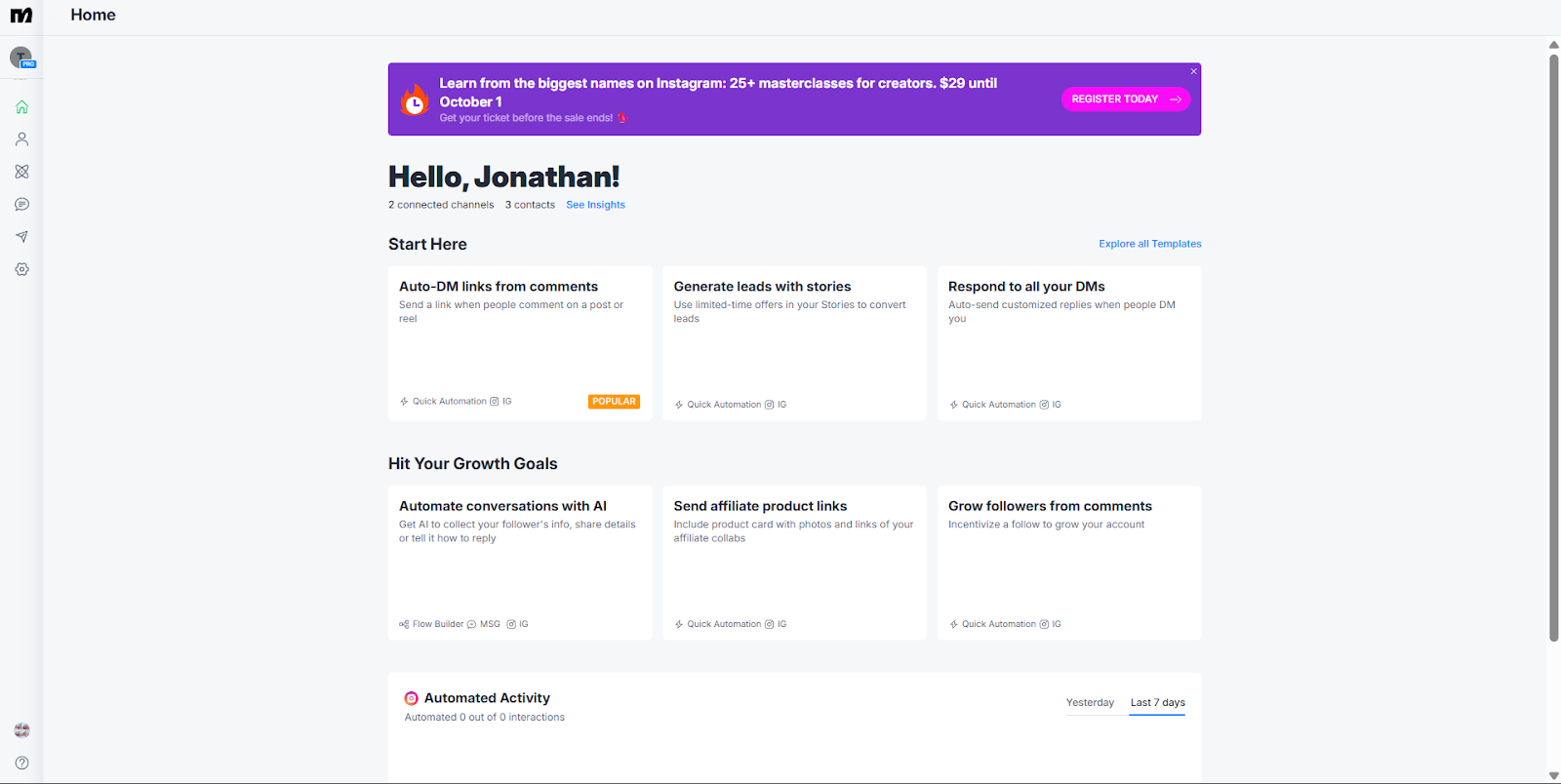
Recent conversations – Review messages between your bot and users.
Engagement stats – Monitor subscriber growth, message performance, and audience metrics.
Quick access shortcuts – Jump directly into flows, automations, or settings.
2. Automation – Where Your Bot Lives
The Automation tab is where you’ll find and manage your chatbot’s flows, rules, and keywords.
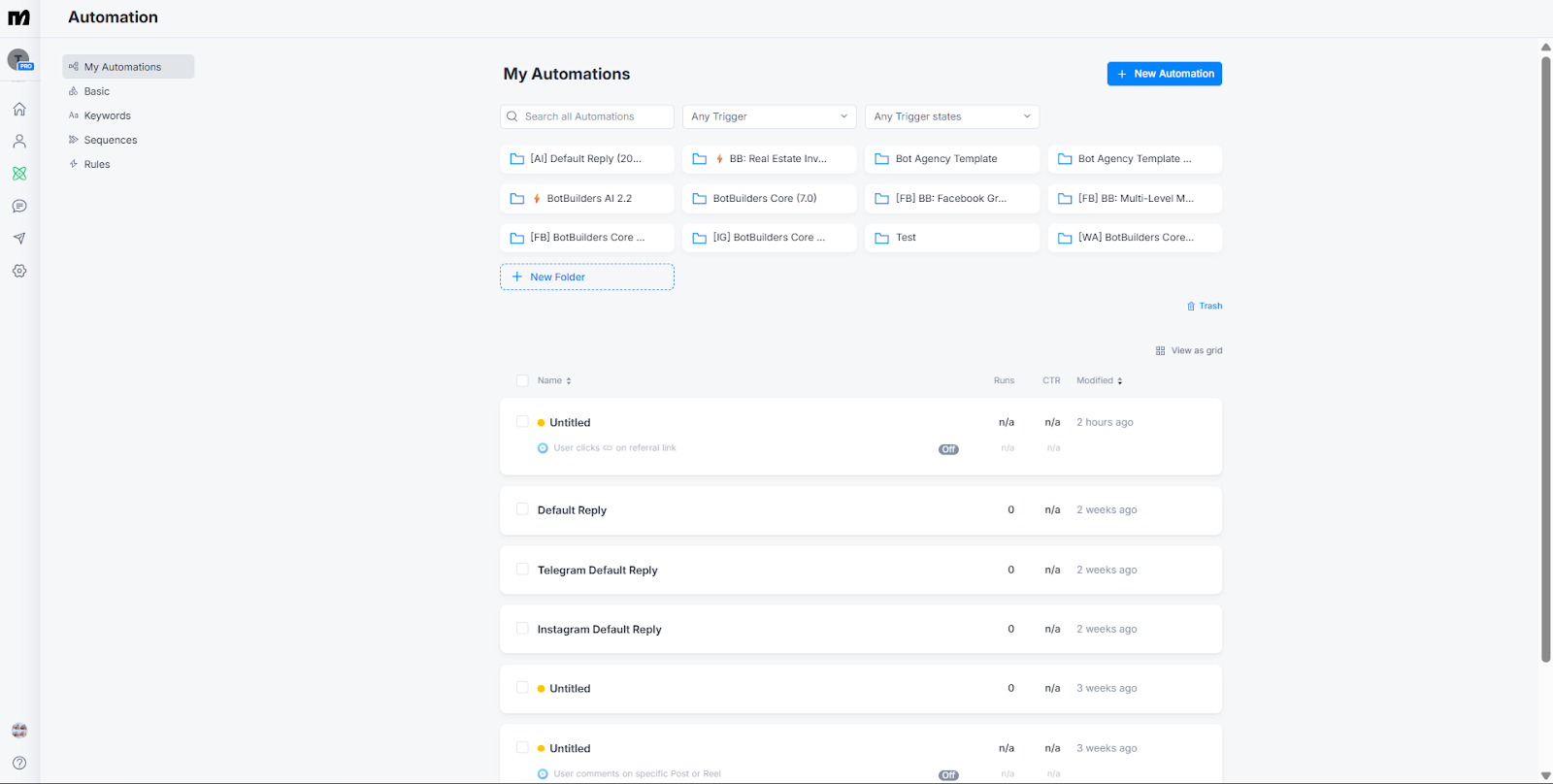
Key areas inside Automation:
My Automations – All your installed flows, including the BotBuilders Core, AI 2.2, and any industry-specific templates you’ve added.
Rules – Conditional triggers that tell your bot when to launch specific flows. BotBuilders rules are clearly labeled (e.g., “BB Core: …”).
Keywords – Phrases that trigger specific flows. For example, typing “reset” can direct a user to a reset flow.
BotBuilders Tip: Use the search bar in My Automations to quickly locate the flow you want to customize.
3. Settings – Controlling Your Bot’s Core Functions
The Settings section allows you to configure your bot’s identity and technical details.
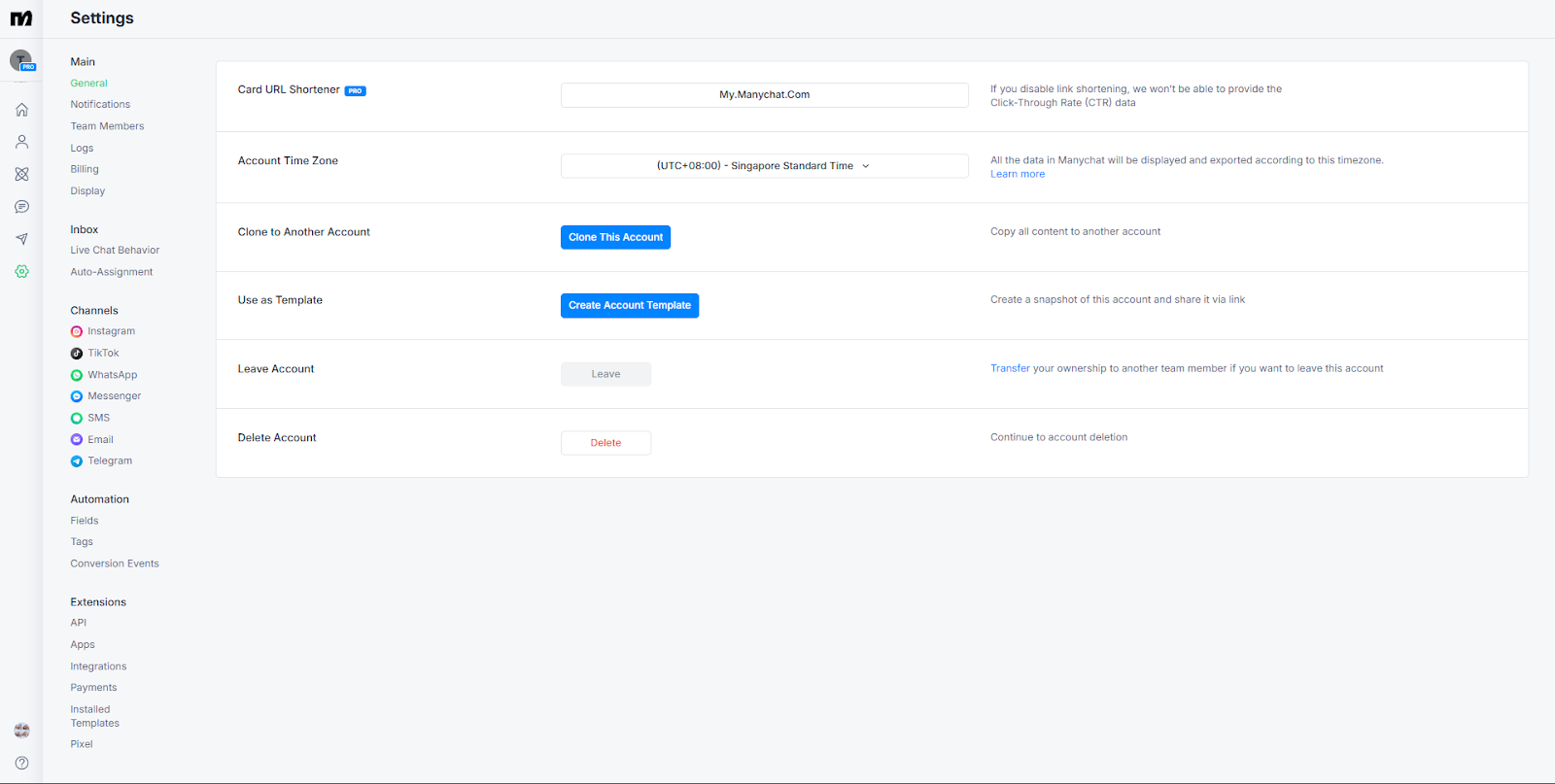
Important settings for BotBuilders clients:
General – Business name, timezone, and profile settings.
Channels – Connect Facebook Messenger, Instagram, WhatsApp, or other channels.
Extensions → Installed Templates – Manage installed templates. Uninstall duplicates or outdated versions.
Fields → Bot Fields – Centralized placeholders for your business details, used throughout your bot.
BotBuilders Tip: After installing the BotBuilders Core or AI 2.2 template, always update your Bot Fields to ensure consistent branding and accuracy across flows. Avoid line breaks and double quotation marks in these fields.
4. Contacts – Knowing Your Subscribers
The Contacts tab lists every user who has interacted with your bot. From here, you can:
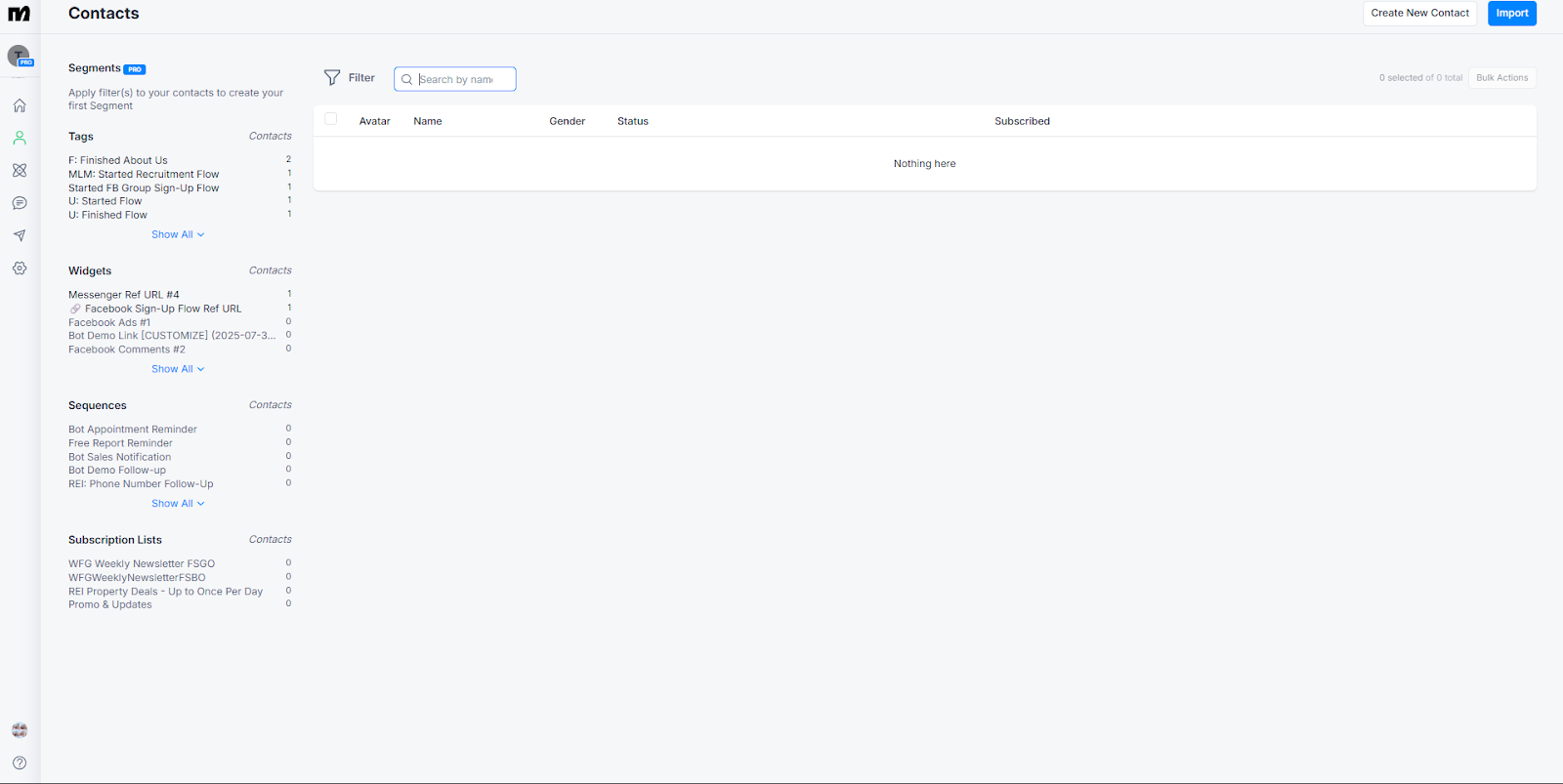
View subscriber details.
Apply or remove tags.
See conversation history.
BotBuilders Tip: Tags help segment your audience for targeted marketing campaigns.
5. Live Chat – Human Conversations in Real Time
If your bot encounters a question it can’t answer or if you prefer to respond manually, the Live Chat section is your go-to.
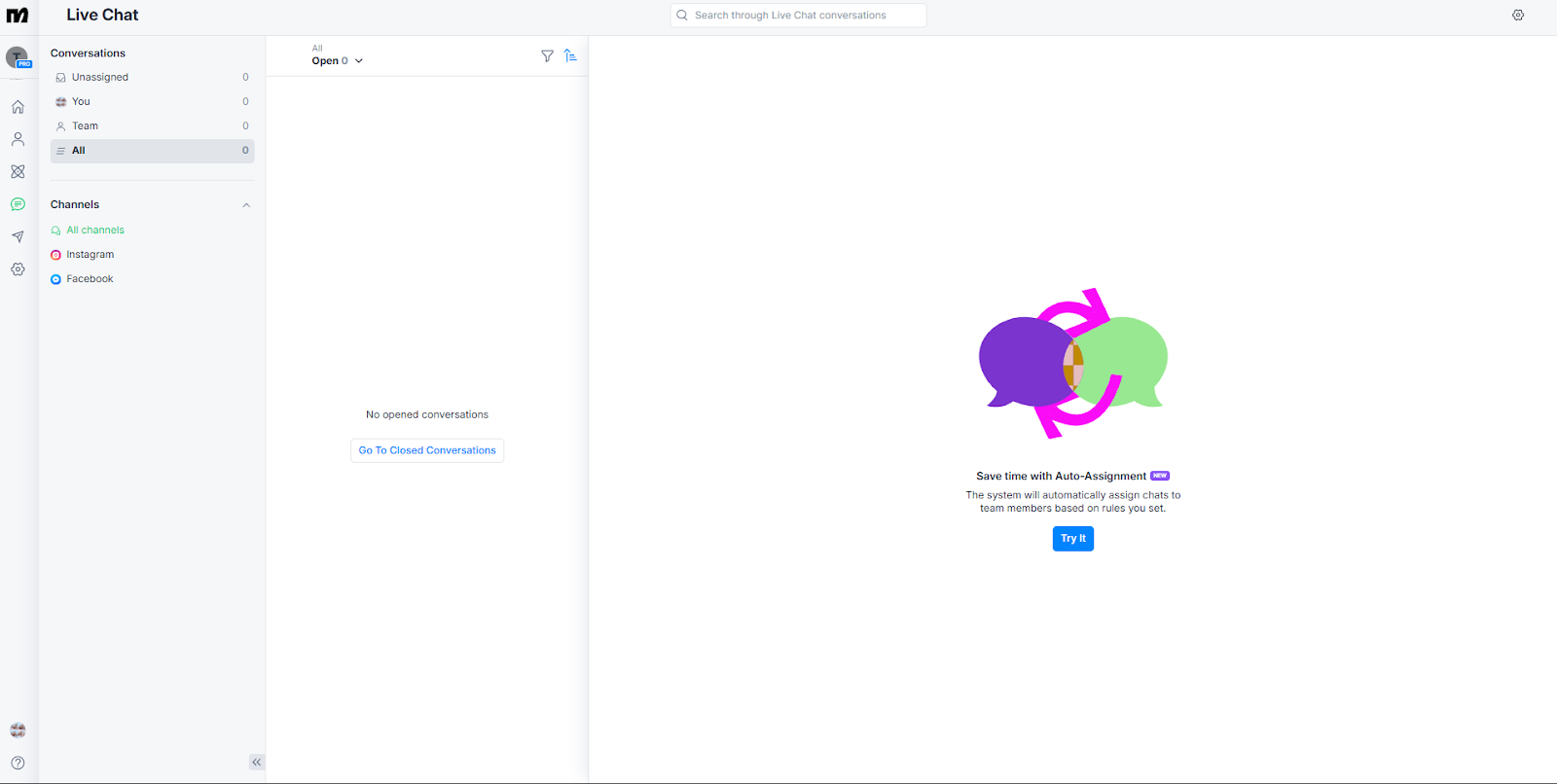
Respond to messages in real time.
Assign conversations to team members.
BotBuilders Tip: Combine live chat with the AI Default Reply in your BotBuilders Core for the best balance of automation and personal touch.
Was this article helpful?
That’s Great!
Thank you for your feedback
Sorry! We couldn't be helpful
Thank you for your feedback
Feedback sent
We appreciate your effort and will try to fix the article